


What are the differences between using Teams alone and using a combination of Teams + wordly.ai?
Service PDF Introduction Click to download PDF file
0. Preface
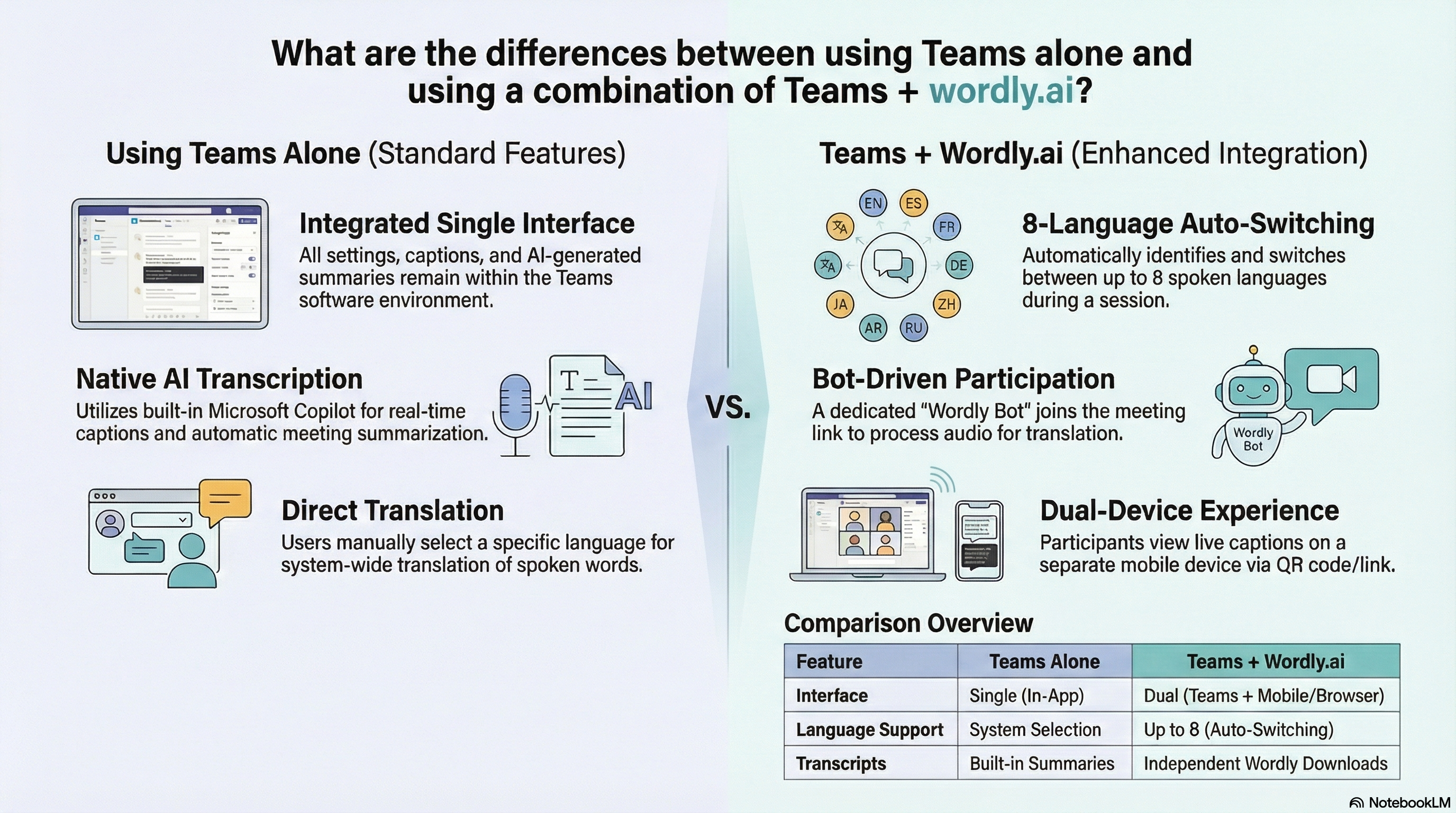
The main differences between using Teams alone and using a combination of Teams + Wordly.ai lie in the operation of the translation mechanism, the number of supported languages, and the user’s viewing experience:
1. Using Teams Alone (Built-in Features)
Tips for Using Teams Meeting Language Settings Independently
1.1 Built-in Live Captions and Interpretation:
Teams itself is equipped with “real-time interpretation for speakers” and caption setting functions. Users can directly select within the system to translate the spoken language into a designated caption language (e.g., translating Chinese to English, or English to Chinese).
1.2 AI Transcription and Automatic Summarization:
You can set the spoken language of the meeting and utilize Teams’ built-in Copilot and other AI features for recording and transcription to automatically generate a meeting summary.
1.3 Single Interface Experience:
All settings, caption viewing, and meeting records are integrated and completed within the Teams software interface.
2. Combined Use of Teams + Wordly.ai
Tips for Using Combined Teams and Wordly.ai Language Settings
2.1 Supports Up to 8 Speaker Languages and Automatic Switching:
Within a single Wordly translation session, you can set up to 8 speaker languages. As long as the “Auto Select” function is enabled, the AI will automatically identify and switch to the language currently being spoken by the speaker, making it suitable for meeting scenarios with a mix of multiple languages.
2.2 Bot Participation Mechanism:
Wordly operates by inviting a bot named “Wordly” to join the Teams meeting via a meeting link. It stays in the participant list like a regular attendee, responsible for receiving meeting audio for translation.
2.3 Dual Screen/Dual Device Viewing Experience:
Attendees who need to view the translation do not need to operate within Teams; instead, they must click on a dedicated Wordly Attendee Link or scan a QR Code. The official recommendation is for attendees to use a mobile phone or another device to open the link, creating a dual-device experience of “watching the Teams screen on one device and viewing translated captions on another.”
2.4 Independent Download of Transcripts:
After the meeting ends, the administrator needs to return to the Wordly system to manually end the session and download the translated transcript for that session from the Wordly system’s history.
3. Conclusion
In summary, using Teams alone relies on Microsoft’s built-in Copilot and caption features for translation and summarization; whereas the combined use of Teams + Wordly.ai expands language recognition capabilities (up to 8 languages with auto-switch support) via a plug-in bot, and separates the translated captions to be viewed on another screen or device through an external link.
4. Please contact Zoe Chiu via email at zoechiu@evershinecpa.com for usage instructions
5. Webpage Author:
Dale C.C. Chen, Principal Partner
DBA, MBA, CPA (Taiwan+China+UK) / Patent Attorney (Taiwan)
Mobile: +886-933920199
Office: +886-2-27170515 E100
Wechat ID: evershiinecpa |
Line ID:evershinecpa
Linkedin address:Dale Chen Linkedin
E-mail: dalechen@evershinecpa.com
Other Relevant Linking

We act as your in-house accountant
supported by cloud accounting and payroll system.
Tokyo, Osaka, Seoul, Hanoi, Hu-Chi-Ming, Singapore, Bangkok,
New Delhi ,Mumbai, Manila,Jakarta, Sydney , Melbourne etc.,
Company Registration, Open Bank Account,
Work Permit and Resident Card;
Online Accounting Services;
Payment services;
Payroll compliance services;

Shanghai, Beijing, Xiamen and other major cities in China;
Company Registration,
Open Bank Account,
Work Permit and Z Visa;
Online Accounting Services;
Payment services;
Payroll compliance services;
Trademark registration;
Due Diligence for M&A Project

Company registration,
Open bank account,
Work Permit and Visa application;
Online Accounting Services,
Payment Services,
Tax Compliance Services;
Payroll compliance Services,
Trademark Registration;
Due Diligence for M&A project.

Cloud Services supported by Cloud System
Creating collaboration working environments among several parties in different cities.
Reducing air travel and relieving Global warming
Comparing traditional way, better practice in the Covid-19 period.
Global wise organized Service Items and Packages
having built County-by-country online Knowledge Database
Assuring our clients being compliance with tax, payroll and investment regulations in each country.