


Mutiple using both wordly and microsoft teams operation manual
Service PDF Introduction Click to download PDF file
Operation Manual prepared by Zoe Chiu Click to download
Tips for combined use of Teams and Wordly.ai language settings
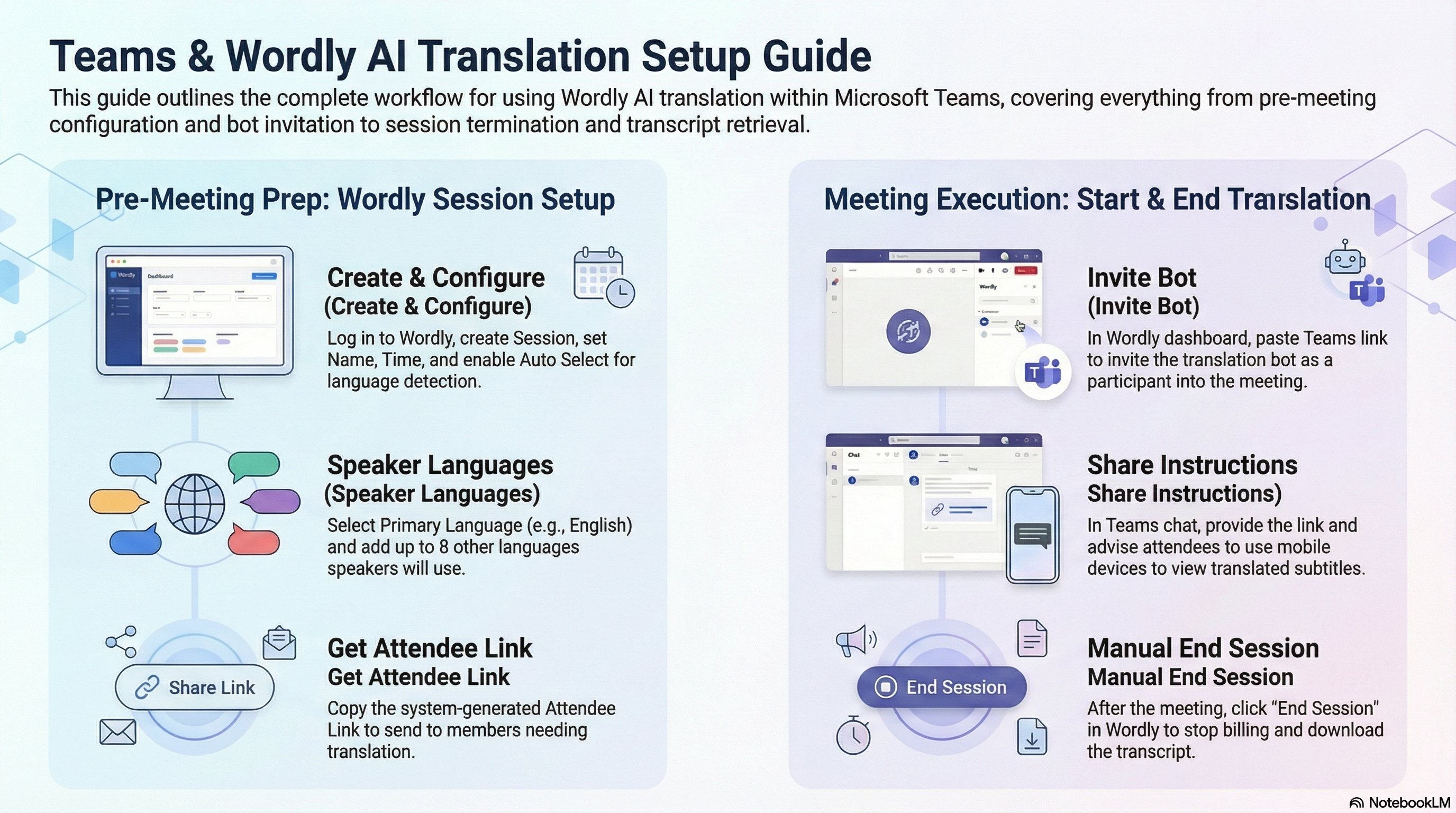
This article aims to guide meeting hosts and administrators on how to set up and enable Wordly real-time translation services in Microsoft Teams meetings:
A. Basic Meeting Information
Set up the online meeting in Teams and ensure the following information is communicated to all participants in advance:
Primary languages to be used in the meeting (speaker languages) (maximum 8 languages)
Teams meeting schedule (Taipei time)
Teams meeting link
Teams meeting title (in English)
B. Pre-Meeting Preparation: Log in to Wordly and Set Up Session
To ensure a smooth meeting, the host or administrator must complete the following setup before the meeting begins.
Step 1: Log in to Wordly
(You can log in and run multiple sessions simultaneously)
Go to the Wordly official website: https://portal.wordly.ai/ (recommended to bookmark this page)
Ask Zoe Chiu to obtain Evershine’s account (email) and password for login.
Step 2: Create a New Translation Session
After logging in, click “Session” on the left panel, then click “+ Add Session” in the top-right corner to create a new translation session.
Step 3: Configure Session Details
Fill in the required fields (highlighted in yellow):
Title: Session name (in English)
Format: Staff name + Teams meeting topic
Example: Zoe_Evershine Monthly Meeting
Start date, Start time, Duration: Set the session schedule
Pin: Pin the session on screen
Language: Select one main language (recommended: English)
Selections: Include all speaker languages (max 8)
Example: Chinese (Mandarin) + English (US) + Japanese
Important: Auto Select must be ENABLED (allows AI to automatically detect input language)
Click “Save” after completing the setup.
Step 4: Obtain Attendee Link
After creating the session, a QR code and attendee link will be generated.
Note: The link number corresponds to the Session ID.
Share this link with participants via email or Teams chat before the meeting.
C. 15 Minutes Before Meeting: Start Wordly Translation
Step 1: Host Joins Teams Meeting
Use the Teams meeting link
Example: https://teams.microsoft.com/meet/41885380422784?p=TCjL4BBKjWHg2ejcej
Step 2: Add Wordly Bot
In the session page, click “Invite Meeting Bot”:
Path: Session > Meeting > Get Links to Join > For Presenters > Invite Meeting Bot
Paste the Teams meeting link (must include https://)
Allow the bot to join the meeting.
Wordly Bot will appear as a participant.
Important: Ensure clear audio for accurate translation.
Step 3: Inform Participants
Paste the attendee link again in Teams chat.
Suggested message:
“Hello everyone, real-time translation is available for this meeting.
Please click the link below and select your preferred language.
It is recommended to use a mobile device or a second device for viewing subtitles.”
Step 4: Start the Meeting
Once the Wordly Bot has joined and links are shared, you can begin the meeting.
All speech will be translated in real time.
D. After Meeting: End Wordly Session
Step 1: End Teams Meeting
End the Teams meeting normally.
The Wordly Bot will leave automatically.
Step 2: End Wordly Session
Return to Wordly dashboard.
Find the active session and click “End Session” to stop translation and billing.
Step 3: (Optional) Download Transcript
After the session ends, you can download the transcript from session history.
4. Contact Zoe Chiu for Assistance
Please contact Zoe Chiu via email at zoechiu@evershinecpa.com to obtain Evershine’s Wordly account credentials.
5. Our Contact Person
Dale C.C. Chen, Principal Partner
DBA, MBA, CPA (TW + CN + UK) / Patent Attorney (TW)
WhatsApp and Mobile: +886-933920199
Office: +886-2-27170515 E100
Wechat ID: evershiinecpa | Line ID: evershinecpa
LinkedIn: Dale Chen
Email: dalechen@evershinecpa.com
Other Relevant Links
- Teams Meeting Language Settings (Standalone) in Chinese
- Combined Use of Teams and Wordly.ai in Chinese
- Differences Between Teams Only vs Teams + Wordly.ai in Chinese

We act as your in-house accountant
supported by cloud accounting and payroll system.
Tokyo, Osaka, Seoul, Hanoi, Hu-Chi-Ming, Singapore, Bangkok,
New Delhi ,Mumbai, Manila,Jakarta, Sydney , Melbourne etc.,
Company Registration, Open Bank Account,
Work Permit and Resident Card;
Online Accounting Services;
Payment services;
Payroll compliance services;

Shanghai, Beijing, Xiamen and other major cities in China;
Company Registration,
Open Bank Account,
Work Permit and Z Visa;
Online Accounting Services;
Payment services;
Payroll compliance services;
Trademark registration;
Due Diligence for M&A Project

Company registration,
Open bank account,
Work Permit and Visa application;
Online Accounting Services,
Payment Services,
Tax Compliance Services;
Payroll compliance Services,
Trademark Registration;
Due Diligence for M&A project.

Cloud Services supported by Cloud System
Creating collaboration working environments among several parties in different cities.
Reducing air travel and relieving Global warming
Comparing traditional way, better practice in the Covid-19 period.
Global wise organized Service Items and Packages
having built County-by-country online Knowledge Database
Assuring our clients being compliance with tax, payroll and investment regulations in each country.